Usage
Call Again watches the calls you place from your phone. When a call ends without connecting, the
app records it and offers to schedule a reminder. When the reminder is due, the app places the call
again, to the number exactly as it was originally dialled. The menu at the top right leads to
Reminders, History, Calls, Delegation, Settings and Manual, the manual inside
the app.
After a failed call
When a call does not go through - busy, no answer, an error tone - then, depending on your
settings, a dialog opens, a notification appears, or nothing happens until you check the call list
yourself. In the dialog, Call now dials again at once, Schedule redial creates a reminder
with a time and a note, and Dismiss lets the call go.
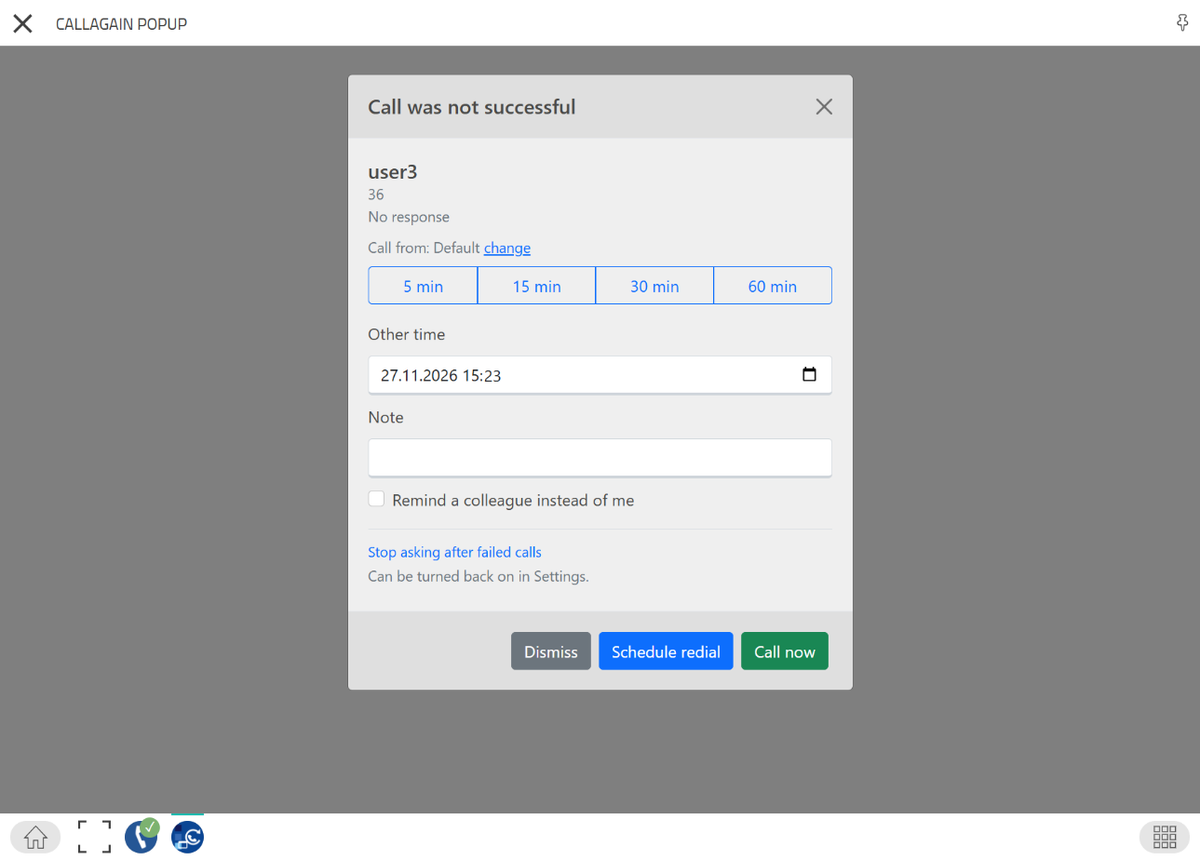
The dialog comes to the front on its own, on top of whatever you are doing, and goes away again once you have answered it - the Call Again app itself stays where it was, open or closed.
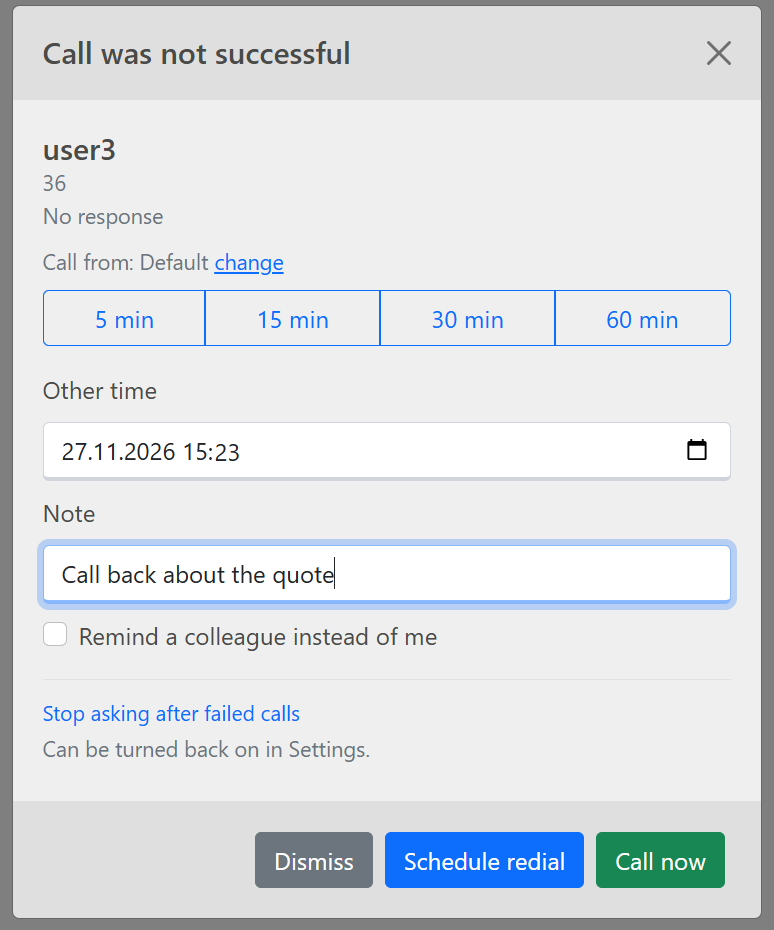
Reminders
A scheduled reminder fires at the time you picked. When it is due, you can call, reschedule it, mark
it as done or give it up; the dialog stays until you decide. Every open reminder is listed under
Reminders, and the app’s icon counts the due ones.
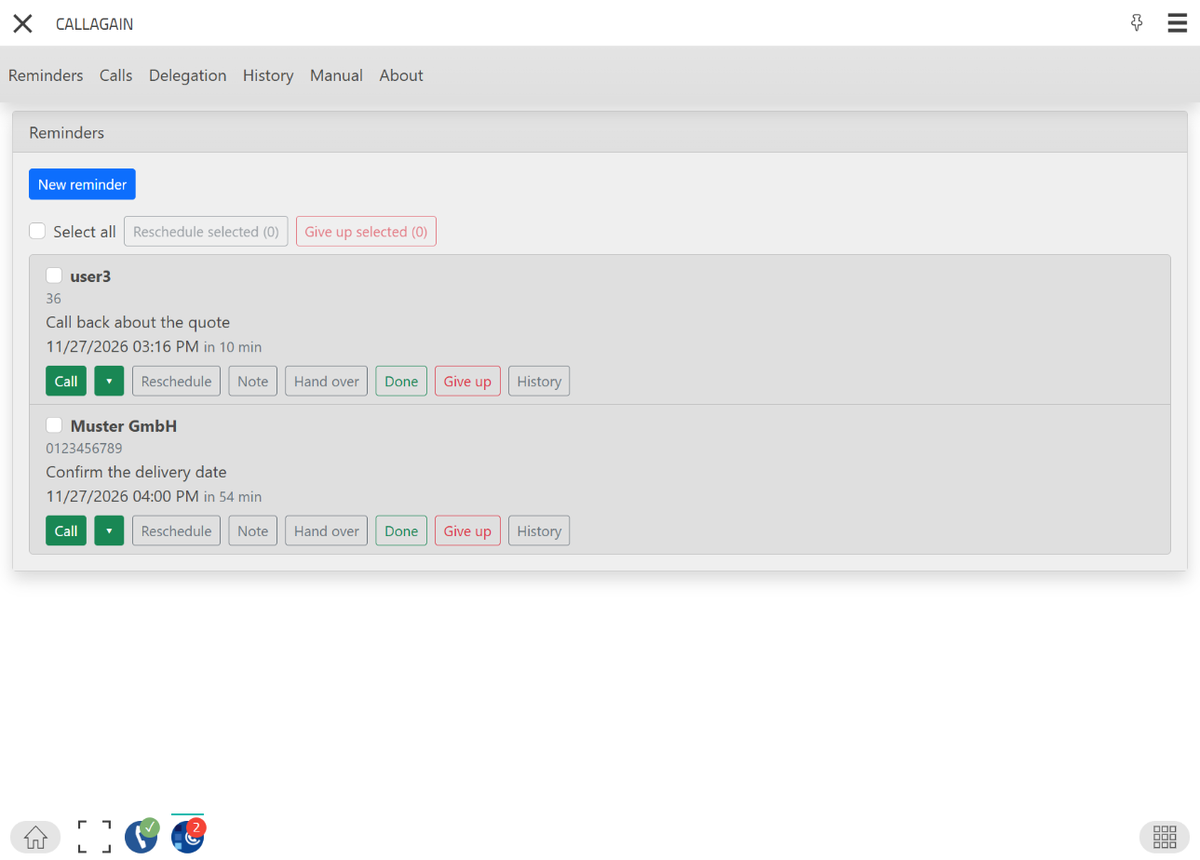
When several reminders are due at once - for example after you were on do not disturb - they come
as one list: each entry can be called, put off, marked as done or given up. The list stays until
every entry is handled; after a call you start from it, it comes back with what is left. Note on
an entry changes or removes its note at any time before that. With two or more reminders in the
list, tick the ones you mean - or Select all - and reschedule or give up all of them at once;
giving up asks first.
Reminded by dialog or chat
Under Remind me by in the settings you choose how a due reminder reaches you: as the dialog in
the app, as a chat message in myApps, or both. The chat message comes from the Call Again chat
sender and names the contact, the number and your note. A notification comes with it. Tap the
notification to open the reminder, because the chat message itself cannot open the app. If chat is
not set up on your system, or the message cannot be delivered, the reminder appears as the dialog
instead.
Creating a reminder yourself
A reminder does not need a call behind it. New reminder at the top of the reminder list opens a
dialog: type a name to search your contacts and pick one of the numbers offered, or simply type a
number, with a name if you like. Then choose the time and add a note, as after a failed call.
Reminders for colleagues
A reminder can be created for a colleague instead of yourself: tick Remind a colleague instead of
me in the dialog, or use Hand over on a reminder in your list. The colleague must have allowed
you first (see Delegation). On a system where the administrator chose Everyone, no such list
exists and anyone may.
The reminder then belongs to the colleague: it falls due for them, under their quiet hours, and
reaches them the way their own reminders do. They are told right away by a notification and, if
they chose chat, a chat message. You keep a read-only view of it under Handed to colleagues in
your list, with its state, while it is open. Once it is finished you find it under History. The
colleague may hand it on again, to someone who allows them to.
Delegation
Under Delegation you decide who may create reminders for you or hand theirs to you: type a name
to find a colleague, add them to the list, and Save colleagues. Nobody else can. On a system
where the administrator chose Everyone, every Call Again user may, and the page only says so.
The item is not in the menu when delegation is switched off on your system.
History
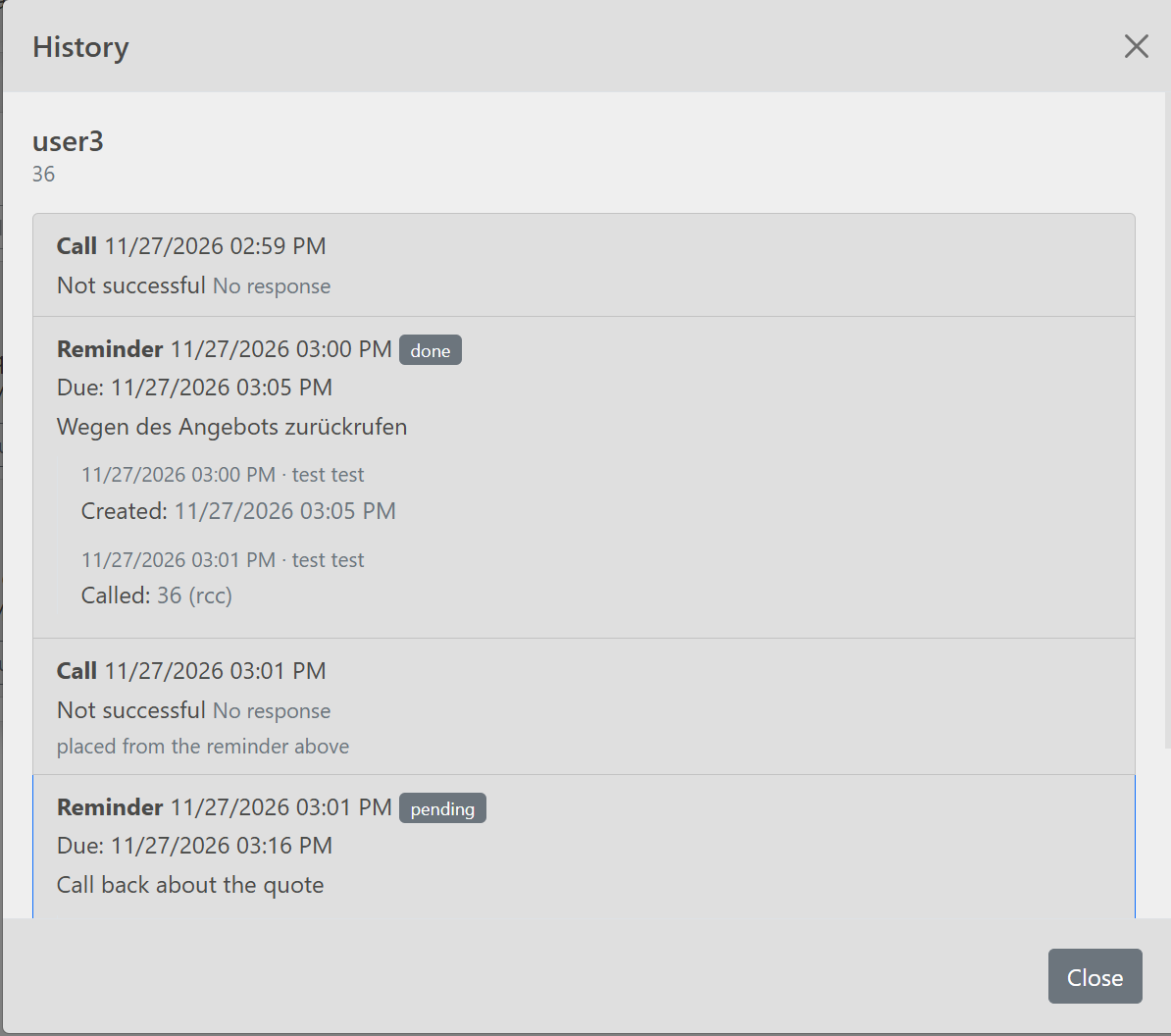
History on an entry shows the whole story of the call: the call that did not get through, the
reminder it produced, the call you placed from that reminder and, if that failed too, the next
reminder - in the order it happened, each reminder with everything that happened to it: created,
handed over, rescheduled, note changed, called, done, and when it fell due and how you were
notified. Both the owner and the creator of a reminder can read it; a colleague’s own calls are not
part of your view.
The History menu item lists the reminders that are finished - done or given up - with the most
recent first. My reminders shows your own, Handed to colleagues the ones you created for
someone else. The list shows the last 25. To see older ones, choose a period with From and
To - either one alone works too; Reset returns to the last 25. Finished reminders are not
deleted, so the period can reach back as far as you like.
Calls
Shows every call the app recorded, successful or not. You can filter to unsuccessful calls only, or
clear the list. A call that belongs to a reminder - one came from it, or it was placed from one -
has a History button that opens the same story.
Settings
Under Settings you choose:
what happens after a failed call: the dialog, a notification only, or nothing,
the default delay and the presets for new reminders,
quiet hours during which no notification is shown,
Remind me by: dialog, chat message or both,
Wait while I am ...: whether a due reminder waits while you are on a call, busy or on do not disturb (on by default - it then comes the moment you are free, and its history says what it waited for),
Show a reminder that fell due ...: whether a reminder that fell due while you had no client open shows its dialog when you log in (on by default, once per device; off, it only waits in the list with the badge),
Ignore internal calls: whether a failed call to a colleague on your own telephone system is left alone - it is still logged, you just get no dialog and no notification for it,whether successful calls are also logged or ask for a reminder.
Why a redial dials the number as it was first typed
Once a call has been routed or diverted by the PBX, it may report a different number or name for the other party than the one that was actually dialled - for example after the call reaches a hunt group or gets forwarded. Call Again always redials the number as it was first dialled, not a number the PBX may have shown later for the same call. This keeps a redial pointed at the original destination instead of, say, whoever last answered a diverted call.